
Fospha AI Budget Actions lets Ask Fospha AI act on your budget decisions - not just answer questions about your performance, but make the change in your ad platform once you approve it. TikTok is the first supported platform, with more to follow. This guide covers getting started with it.
When there is a clear case to move budget, Ask Fospha AI flags the change, explains why, and - once you approve it - makes the change directly in your own TikTok Ads account. Every change is proposed with its reasoning, waits for your approval, and can be reversed in a click.
Nothing changes about who is in control. What changes is how fast a decision reaches the platform once you have made it.
What is Fospha AI Budget Actions?
Fospha AI Budget Actions connects your ad platform to Ask Fospha AI so that budget decisions grounded in Fospha's daily, total-funnel measurement can be executed in the platform, on your command and under your own login. TikTok is the first supported platform.
It follows one simple loop:
- Connect - link your TikTok Ads account, once, using your own TikTok login.
- Propose - Ask Fospha AI puts forward a budget change with the reasoning and the forecast result behind it.
- Approve - you approve, adjust, or decline. Nothing executes without your decision.
- Execute - the approved change is made directly in TikTok, using your own account.
- Report - by the next day, you see what happened versus what was forecast.
You can act at three levels of granularity:
- A single campaign - "Increase the daily budget for 'Summer Sale UK' to £500."
- Multiple campaigns at once - "Increase budgets for 'Prospecting - Video', 'Retargeting' and 'UGC Hooks' by 10% each."
- A whole channel segment - "Rebalance budgets across all Prospecting, Conversion campaigns."
📌 Where this fits. Budget Actions live inside Ask Fospha AI, in the Fospha platform, and you approve each change in the moment it is proposed. For automation that runs on a schedule, see Fospha AI Agents. To use Fospha's measurement inside Claude, ChatGPT or Gemini, see the Fospha MCP - Setup & Onboarding Guide.
Before you start
💡 Getting access. Fospha AI Budget Actions is currently in Closed Beta with a small cohort of clients. If you would like to be involved, or to be notified about updates, please contact your Fospha Customer Success Manager (CSM).
To use it, you will need:
- A TikTok Ads account you can log into directly. The connection runs under your own TikTok Business login, so the person connecting must be able to sign in and have permission to view performance and change budgets.
- Active TikTok spend in an eligible segment. Budget Actions work on TikTok Paid Social and Video campaigns with a conversion focus. Pure awareness and reach objectives are not included in the beta.
- For segment-level changes: a segment with at least four actively spending campaigns (or ad groups). Single-campaign and multi-campaign changes have no such minimum.
📌 A note on budget structure. On TikTok, budget lives either at ad-group level or at campaign level (when you run Campaign Budget Optimisation). Ask Fospha AI works with whichever your account uses - set once when you connect.
How it keeps you in control
This is the part that matters most, so it comes first. Fospha AI Budget Actions is built so that acting in your ad platform never means handing over control of it.
- Your identity, never ours. Every read and change runs under your own TikTok login, never a shared Fospha account. In TikTok's own records, changes are attributed to you - exactly as if you had made them yourself.
- You approve every change. Ask Fospha AI proposes; you decide. In this version nothing is ever changed automatically or on a schedule - every change waits for a human to approve it. (For automation that runs on a schedule, see Fospha AI Agents.)
- Everything is reversible. Any applied change can be reverted in a click. Fospha re-checks the live state and restores the previous value.
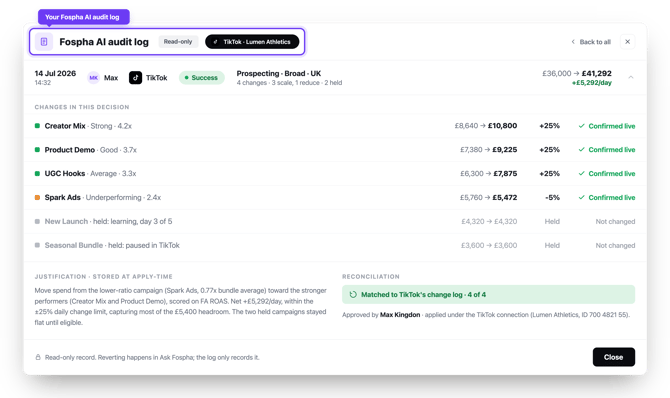
- Everything is logged. Every applied change is recorded - the proposal, the reasoning, who approved it, and when - and reconciled against TikTok's own change log.
- Sensible guardrails by default. Changes are bounded to a set daily limit, no single campaign runs away with the budget, and brand-new or very-low-spend campaigns are held steady while they gather data. Visible on every proposal, and adjustable.
💡 Ask Fospha AI only ever reads performance and updates budgets. It does not create, pause, retarget or re-bid campaigns.
Steps to get connected
Step 1 - Connect your TikTok account
Connection is set up and managed in Settings, not in chat.
- In Fospha, open Settings and go to the Connectors tab.
- Find TikTok for Business and click Connect.
- A side panel explains what the connection means - your identity, your approval on every change, and the full audit trail. Fospha requests only the permissions it needs: read performance and update budgets, revocable at any time.
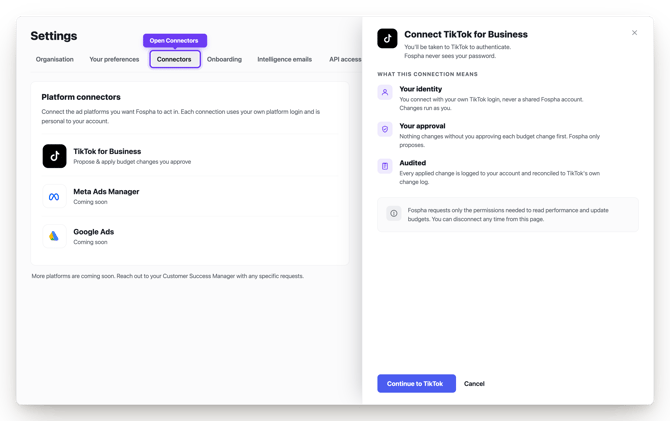
- You are handed off to TikTok's own sign-in screens in a new tab. You log in to TikTok directly - Fospha never sees your password.
- Once you approve access on TikTok, you are returned to Fospha, which completes the connection automatically.
When you are connected, the connector row shows your connected identity (name, advertiser account name and ID), the connection date, the permissions granted, and a link to the change log. You can disconnect from the same row at any time.
📌 If your login has access to more than one TikTok advertiser account, you choose which one to bind during setup. One advertiser account is connected per connection.
Step 2 - Make your first budget change
Once connected, you make changes in Ask Fospha AI, in plain language.
Try a small, low-risk change first to see the full loop end to end:
"Increase the daily budget for 'Summer Sale UK' by 10%."
- Ask Fospha AI reads the live budget from TikTok (not any assumed figure) and works out the new value.
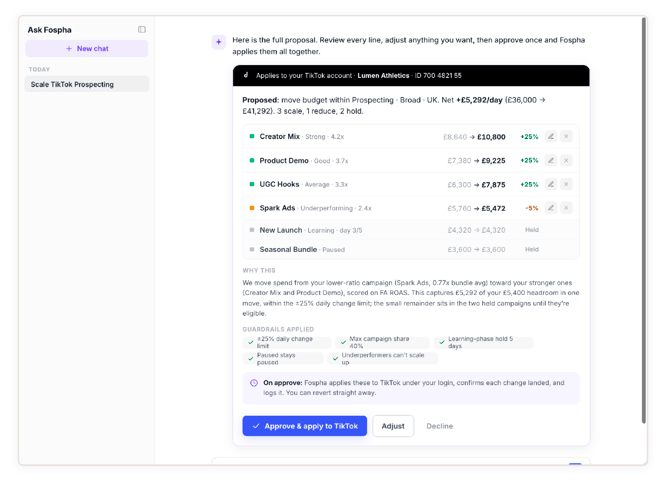
- It shows you a proposal - current budget, proposed budget, the reasoning, the forecast result, and the guardrails that bound it.
- You approve, adjust, or decline. If you approve, the change is sent to TikTok.
- Fospha confirms the change actually landed by re-reading the campaign from TikTok, and only marks it complete once the new value is confirmed live.
- The next day, you get a read on how the change is performing against forecast.
The three ways to change budgets
Express a change however is natural - by amount, percentage, or multiplier - at three levels.
1. A single campaign
- "Increase the daily budget for 'Summer Sale UK' to £500."
- "Increase 'Winter Launch' budget by 20%."
- "Reduce 'Q3 Retargeting' to £300 per day."
- "Scale up 'Influencer Push' 2x."
- "Set the budget for ad group 'AdGroup 42' to £200."
2. Multiple campaigns at once
List the campaigns and how each should change. You see every campaign and its proposed direction of change up front, and approve the whole set with a single decision - not one campaign at a time. Adjust or remove any line before approving.
- "Increase budgets for 'Prospecting - Video', 'Retargeting' and 'UGC Hooks' by 10% each."
- "Set 'Prospecting - Video' to £300 and 'Retargeting' to £450."
- "Split a total of £5,000 across these three campaigns by their current spend."
- "Double the budget for 'Prospecting - Video' and 'UGC Hooks'."
3. A whole channel segment
Describe the segment by strategy and objective; Ask Fospha AI finds the matching campaigns and rebalances budget between them toward the stronger performers, within your guardrails.
- "Rebalance budgets across all Prospecting, Conversion campaigns."
- "Rebalance all Retargeting, Conversion campaigns in the UK market."
- "Reduce budget for all Retargeting, Conversion campaigns by 15%."
📌 What "rebalance" does. It redistributes the segment's current budget toward better-performing campaigns. To add or remove budget overall, use a percentage change or a single-/multi-campaign change.
Reviewing, adjusting and reverting
Every proposal - one campaign or fifty - comes with the same three choices:
- Approve - executed in TikTok and confirmed live.
- Adjust - change the values directly on the proposal before approving.
- Decline - nothing is sent; no spend changes.
To confirm or undo after the fact, just say so:
- "Approve the change you just proposed for 'Summer Sale UK'."
- "Actually, don't apply that change."
- "Revert 'Winter Launch' campaign's last approved budget change."
- "Revert the last change across 'Prospecting - Video', 'Retargeting' and 'UGC Hooks'."
.png?width=670&height=475&name=fospha-changes-applied%20(1).png)
What you get back: reporting
Reporting is built to prove the change worked - and to make the person who approved it look good.
- What happened vs a steady-state baseline for a set of changes.
- On-track tracking against each change's expected trajectory ("day 20 of a 30-day effect, on track").
- Benchmarks - your changes alongside cross-brand and TikTok's own benchmarks.
- Drift alerts if performance moves away from forecast.
Navigate to Settings > Connectors > View audit log
.png?width=670&height=441&name=fospha-connectors-connected%20(3).png)
Managing your connection
- The connected chip in Ask Fospha AI shows the connection is active, reminds you actions run under your TikTok login, and is where you include or exclude the connection for a given question.
- Suggested prompts for TikTok appear when connected.
- Manage or disconnect from Settings → Connectors at any time.
- If your connection expires (TikTok requires periodic re-sign-in), proposing and applying pause until you reconnect - your setup is preserved.
Tips for best results
- 💡 Be specific. Name the campaign, ad group or segment exactly, and say whether you mean an amount, a percentage, or a multiplier.
- 💡 Start small. One small change is the fastest way to see the whole loop and build confidence.
- 💡 Trust the live number. Ask Fospha AI always reads the current budget from TikTok - if you state one and it differs, it uses the real one and tells you.
- 💡 Use the reasoning. Every proposal explains why, often surfacing a strategic next step (headroom to scale, or a bid-constrained vs budget-constrained campaign).
- 💡 Approve as a set for multi-campaign and segment changes, rather than asking per campaign.
Troubleshooting
| What you see | What it means | What to do |
|---|---|---|
| "That name matches more than one campaign" | The campaign name is not unique. | Ask Fospha AI lists the matches with IDs and markets - pick the one you meant. |
| "I couldn't find that campaign" | Can't be found/verified (e.g. deleted). | Check the name or ID in TikTok. No change is made until a campaign is confirmed live. |
| A currency you didn't expect | Amount named in a different currency to the account's billing currency. | Re-state in the account's billing currency - Ask Fospha AI tells you which. |
| "That amount isn't valid for this campaign" | Below TikTok's minimum, above its maximum, or negative. | Use a value within the stated range. Nothing is sent until it's valid. |
| "Pausing isn't supported here" | This version changes budgets only. | Pause/enable/retarget/re-bid in TikTok directly. |
| Sign-in was cancelled | TikTok sign-in closed before finishing. | Nothing connected, no spend changed. Restart from Settings → Connectors. |
| "No eligible account" | The login has no TikTok-active advertiser account. | Connect with a login that has an active account, or choose another. |
| "Connection expired" | TikTok requires periodic re-authentication. | Reconnect from Settings → Connectors. Setup is preserved. |
Data & privacy FAQs
Whose login does Fospha use to make changes?
Your own TikTok Business login (pass-through authentication), so every read and change is attributed to you in TikTok's own records. Fospha never uses a shared service account, and never sees your TikTok password.
Can Fospha change my budgets without me approving them?
No. In this version, every change is proposed and waits for your explicit approval. Nothing runs automatically or on a schedule.
What exactly can Fospha do in my TikTok account?
Read performance, budget and status, and update budgets on changes you approve. It cannot create, pause, retarget or re-bid campaigns.
Is there a record of what was changed?
Yes. Every applied change is logged with its reasoning, the approving user and the time, and reconciled against TikTok's own change log.
Can I undo a change?
Yes. Any applied change can be reverted in a click; Fospha re-checks the live state and restores the previous value.
How do I revoke access?
Disconnect from Settings → Connectors at any time. The permissions you granted are revocable.
What happens to a request if I am not connected yet?
If you ask for a budget change before connecting, Ask Fospha AI explains why a connection is needed and routes you to Settings. Your request is held and picked up again once you connect.
Need help?
If you run into any issues or have questions about Fospha AI Budget Actions, please reach out to your Fospha Customer Success Manager (CSM). They can help with access, connection, and anything else you need.