
This article explains what Benchmarking is, how to access it, and how to interpret the data to make more confident budget decisions.
Note: Benchmarking is currently available to opted-in customers only. Contact your Fospha CSM to enable access.
What is Benchmarking?
Knowing whether your channel mix is working requires more than internal data - it requires context. Benchmarking surfaces Share of Spend (SoS) and Share of Revenue (SoR) data drawn from other eCommerce brands on the Fospha platform, so you can see how your budget allocation compares to your peers.
For every channel group and source, you can see:
- Your median SoS versus the benchmark median
- The delta between the two
- What the median SoS looks like for channels you're not currently investing in
This gives you credible, data-backed context to justify budget decisions - and surfaces growth potential you might otherwise miss.
Key terms:
Share of Spend (SoS) - your spend on a given channel as a percentage of your total measured spend.
Share of Revenue (SoR) - your revenue attributed to a given channel as a percentage of total measured revenue.
Benchmark - the aggregated median across opted-in eCommerce brands in your benchmark group (EU or US), for channels with at least 10 brands contributing data and 30 days of spend.
Step 1: Open the Benchmarks panel
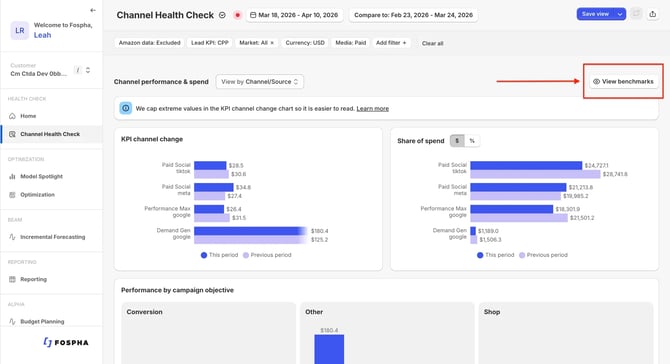
Navigate to Channel Health Check in the left sidebar.
Select View Benchmarks - a side panel opens on the right of the screen.
Step 2: Review your SoW vs. the benchmark
The panel shows a You vs. Benchmark comparison based on your active filters (Channel Group, Campaign Objective/Strategy, Source, Market, Media).
For each channel, you'll see:
- Your current SoW
- The benchmark SoW for that channel
- The delta between the two (above or below)
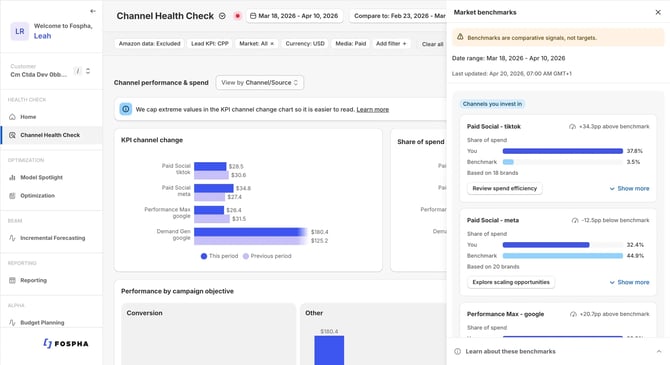
Use this view to identify where you may be above or below the benchmark, relative to your peer group.
Step 3: Drill into Share of Revenue data
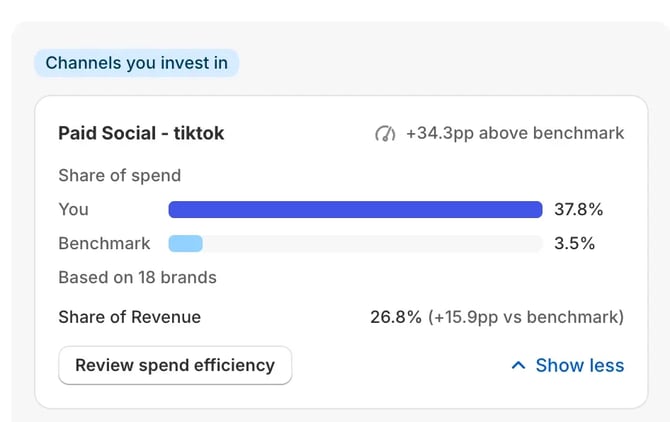
Select Show more beneath any channel to expand the view and see Share of Revenue data alongside SoW.
SoR gives you an additional signal: not just how much peers are spending on a channel, but how much revenue it's contributing relative to the total.
Step 4: See channels you're not currently investing in
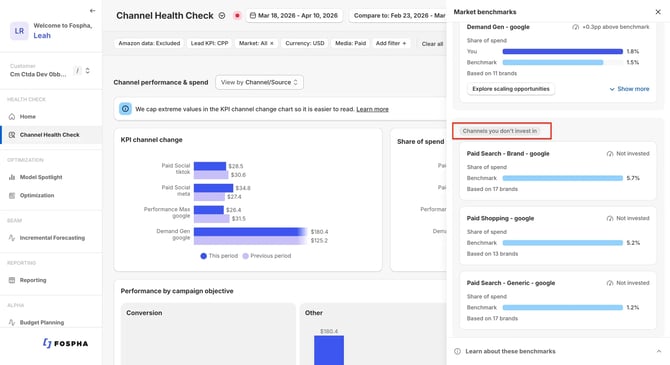
Scroll down in the panel to view channels where your current SoW is zero - but where peers in your benchmark group are actively spending.
For each of these channels, you'll see the median SoW among brands that do invest in it. This helps surface potential investment opportunities worth investigating.
Step 5: Learn about your benchmarks
Select Learn about these benchmarks to view details about the data behind the comparison:
- Number of brands in the benchmark group
- Date range covered
- When the benchmarks were last updated
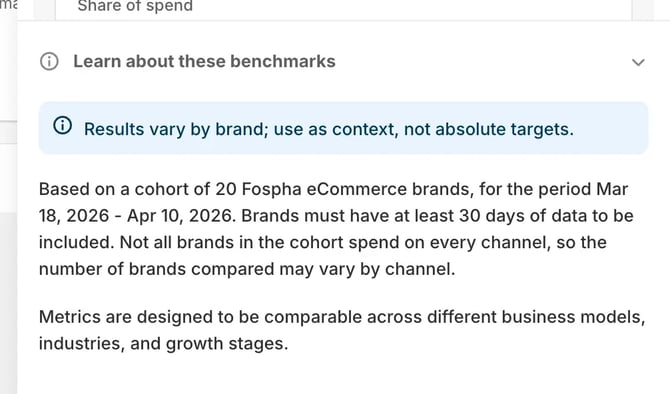
Benchmark groups are based on data residency (EU or US). A channel only appears in the benchmark if at least 10 brands in your cohort are investing in it and at least 30 days of data to be included. Where that threshold isn't met, the card displays "Not enough data to benchmark this channel."
Step 6: Act on what you find
Take direct action by following through from the Benchmarks panel into Beam - Fospha's forecasting tool - to explore spend efficiency or model scaling scenarios for channel segments with growth potential.
Tips
Use your active filters to sharpen the comparison. Benchmarks respond to your filter bar selections (Channel Group, Source, Media). If you're focused on a specific channel group, filter first - then open Benchmarks to see a more targeted comparison.
SoS gaps are a starting point, not a directive. A channel where you're below the benchmark median may represent an opportunity - or it may reflect a deliberate strategic choice. Use Benchmarks alongside your own ROAS and incremental revenue data to determine whether a reallocation is worth exploring.
Check back as the benchmarking updates. Benchmark data is based on a fixed 30-day rolling window calculated from today - it doesn't change based on the date range you've selected in the dashboard. If you adjust your date range to look at a different time period, the benchmarks will still reflect the most recent 30 days.
The Learn about these benchmarks panel shows the last updated date so you always know how current the data is.
Troubleshooting
I can see the "View Benchmarks" button but the panel shows no data. Your account may not yet be opted into Benchmarking. Contact your Fospha CSM to confirm access.
A channel I invest in shows "Not enough data to benchmark this channel". We don’t have more than 30 days of spend for this channel or data for more than 10 clients investing in this specific channel.
The benchmark figures look different after I changed my filters. This is expected. Benchmarks update to reflect your active filter selections. Check that your Channel Group, Campaign Strategy/Objective, Source filters are set as intended.
The benchmarks don't seem to match the date range I've selected. This is expected. Benchmark data is always based on the last 30 days from today, regardless of the date range set in your dashboard. Changing your date range affects your own performance data, but not the benchmark figures.
FAQ's
Who can see Benchmarks?
Benchmarking is available to customers who have opted in. Only opted-in brands are included in both the view and the benchmark group - so your data only contributes to benchmarks if you've agreed to participate. Contact your CSM to enable access.
What data powers the benchmarks?
Benchmarks are drawn from opted-in eCommerce brands on the Fospha platform, aggregated and anonymised. Benchmark groups are segmented by data residency (EU or US). A channel requires a minimum of 10 contributing brands before a benchmark is shown and at least 30 days of spend data.
Do benchmarks update when I change my filters?
Mostly yes - but with one exception. Adjusting filters like Channel Group, Campaign Objective/Strategy, and Source will update the benchmark comparison accordingly.
Market is the exception. Benchmarks are tied to your data residency (EU or US), not your selected market. If you filter to a market outside your data residency, the benchmark data shown will still reflect your data residency benchmark group rather than the filtered market. This logic will be updated in a future release.
Date range is also the exception. Benchmark data is always based on the last 30 days from today. Changing your dashboard date range affects your own performance data but does not change the benchmark figures.
Are channels I'm not investing in shown in the benchmark?
Yes. For channels where your median SoS is zero, the panel shows the median SoS among brands in your benchmark group that are actively investing in that channel. This is designed to surface potential opportunities, not to imply you should be investing in every channel.
How does Benchmarking relate to Beam?
Benchmarking shows you where your peers are allocating spend. Beam helps you model what would happen if you shifted your own spend. The two work well together - use Benchmarking to identify gaps, then use Beam to assess whether scaling into those channel segment makes sense for your brand.
What does "Share of Spend" mean exactly?
Share of Spend (SoS) is your spend on a given channel expressed as a percentage of your total measured spend across all channels. A benchmark SoS of 20% for Meta, for example, means the median brand in your benchmark group allocates 20% of their total spend to Meta.